Invite teammates & user roles
Add people to your workspace and control what each role can do.
Add teammates to your organization and give each one a role that controls what they can do.
Only the Admin role can manage team members. Team management is at Settings → Team (/admin/settings/users).
The four roles
- Admin - full access to all marketing features, settings, billing, and team management.
- Marketing Manager - runs campaigns end to end: contacts, segments, templates, campaigns, automations, suppression, and connected channels. Cannot change settings or manage the team.
- Content Editor - creates and edits email templates, and can view campaigns and segments. Cannot send campaigns or manage contacts.
- Viewer / Analyst - read-only access to contacts, campaigns, templates, and analytics.
Give people the least access they need. You can change a role at any time, and the change takes effect immediately.
Add a team member
-
Open Settings → Team. In the sidebar, open Settings, then Team.
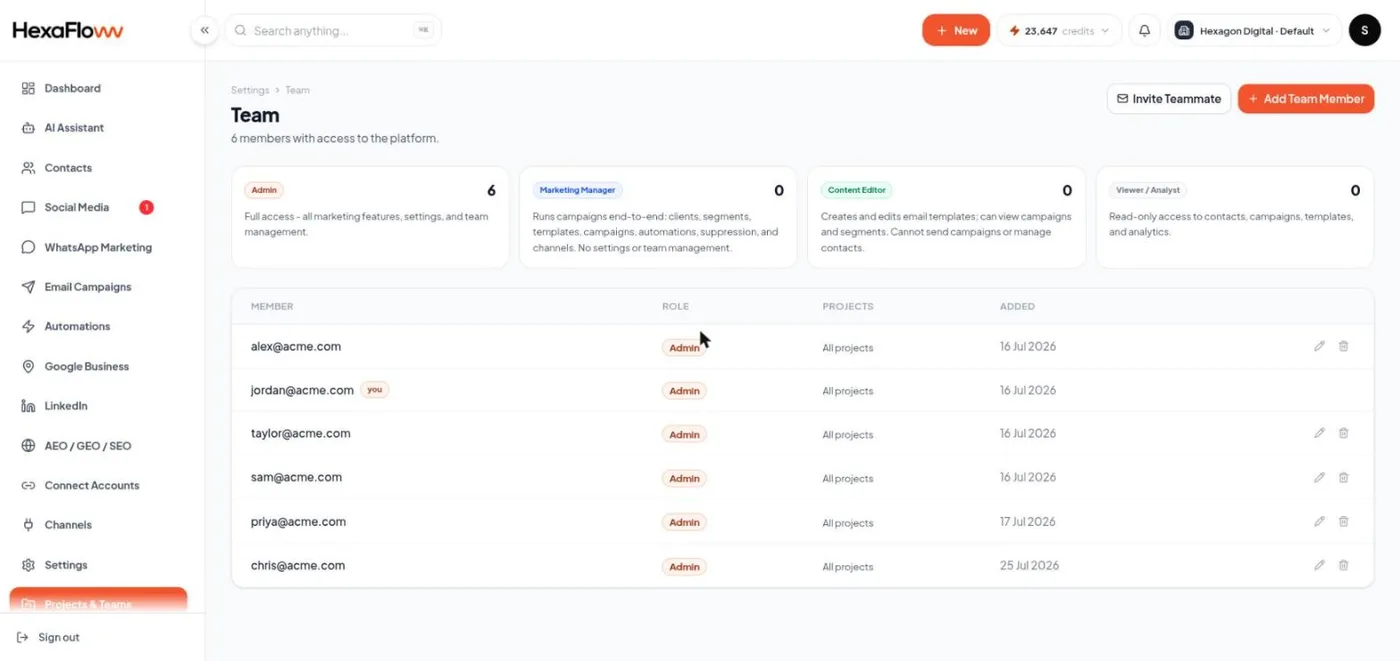
Team settings page with the Add user form -
Enter their email and choose a role. If your organization has more than one project, non-admin roles are also scoped to specific projects - pick which ones they can access. Admins always have access to every project.
-
Send the invite. They receive an email to set a password and join. Their access starts as soon as they accept.
Changing or removing access
On the same page, use the role dropdown on a member's row to change their role, or remove them entirely. You can't remove or demote the last remaining admin - promote someone else first.
Related