Create a message template & get it approved
Build a template, submit it to Meta, and track its status.
WhatsApp requires every message you start to a customer to use a template that Meta has approved in advance. You build templates at /admin/whatsapp/templates and submit them for review.
Template categories
- Marketing - promotions, offers, announcements, re-engagement. Subject to opt-in and frequency limits, and priced as marketing messages.
- Utility - updates about an existing order, appointment, or account (e.g. "your order has shipped"). Cheaper, and exempt from marketing frequency caps.
- Authentication - one-time passcodes only. Fixed layout.
Pick the honest category. Meta re-categorizes templates that don't match their content, and deliberately mislabelling marketing as utility hurts your quality rating.
Build and submit a template
-
Open Templates → New. Go to
/admin/whatsapp/templatesand click New template. You can start from a blank template or one of the built-in starters for Marketing and Utility. -
Name it and pick a category and language. The name must be lowercase with underscores (e.g.
july_sale_2026). Choose the language you're writing in. -
Write the content. A template can have an optional header (text or an image / video / document), a body, an optional footer, and optional buttons (quick replies, a link, a call, or a Flow). Use
{{1}},{{2}}… as placeholders for values you'll fill in per recipient at send time.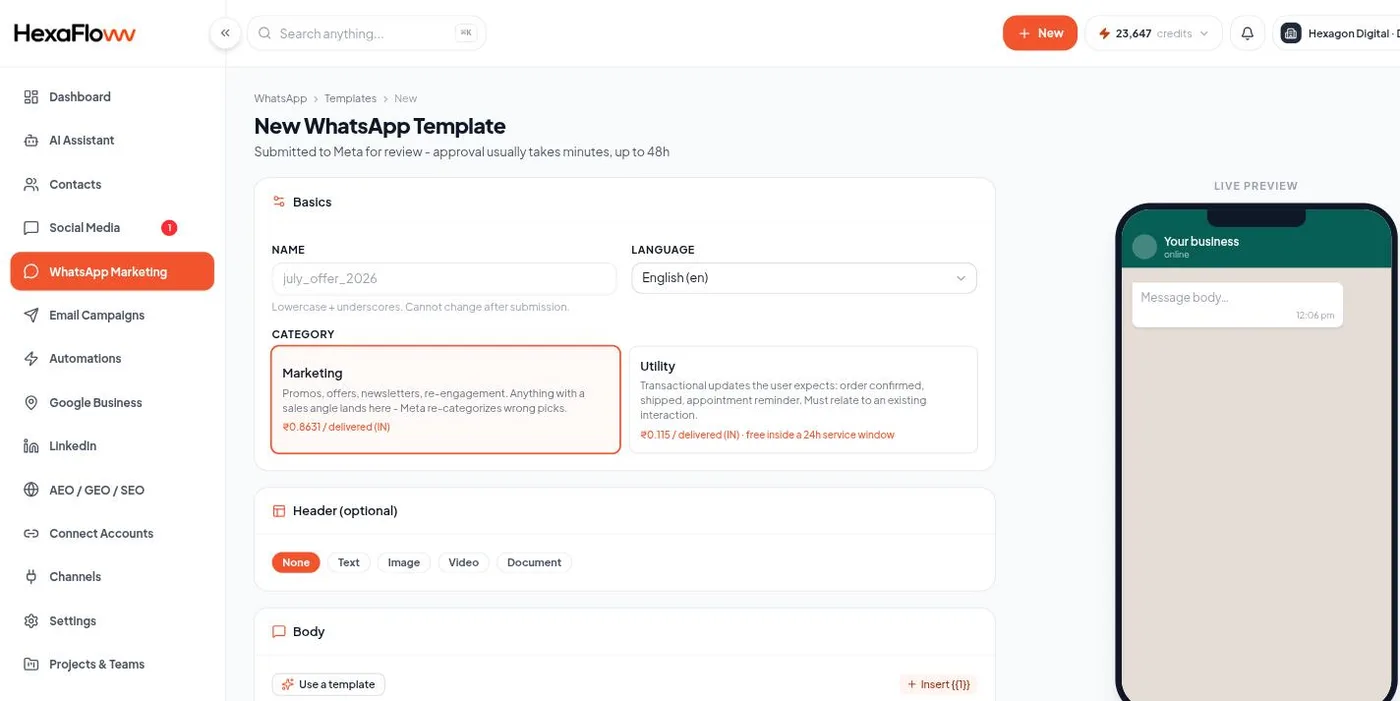
Template builder with header, body, footer and buttons, plus a live phone preview -
Add sample values. Meta needs an example for every placeholder (and a sample file for a media header) to review the template. HexaFloww checks the rules before you submit and flags problems inline.
-
Submit for review. Submit to Meta. Review usually takes minutes to a few hours. You can keep working while you wait.
Template statuses
- Pending - waiting on Meta's review.
- Approved - ready to use in campaigns and automations.
- Rejected - Meta declined it. HexaFloww emails your admins with the reason. Edit and resubmit.
- Paused / Disabled - Meta paused it because of poor quality. Any campaign using it is paused too. Improve the template or switch to another.
Syncing from Meta
Templates you already created in Meta Business Manager can be pulled in with Sync from Meta on the templates page, so you don't have to rebuild them.
Next steps