Import contacts from a CSV
Upload a spreadsheet and let the importer match its columns to contact fields.
The fastest way to bring in a lot of contacts is a spreadsheet upload at /admin/clients/import. .csv, .xlsx, and .xls all work. Large files import in the background, so you can keep working.
Before you start
- You need the Admin or Marketing Manager role.
- The first row must be a header row - the importer matches columns by name, so the headers have to match the names below.
- Download the sample template from the import page if you want a starting point.
Prepare your file
Standard columns the importer recognizes:
email- used to match and de-duplicate contacts. Required if there's nophone.phone- required if there's noemail.name,company,location,occupation,gender(Male/Female/Other),dob(YYYY-MM-DD).segments- comma-separated segment names, e.g.Newsletter, VIP, Tech. Missing segments are created.wa_opt_in- a truthy value (yes/true/1) turns on the contact's WhatsApp consent.- Any other column is stored as a custom field you can use in templates and segment rules.
Import
-
Open Contacts → Import. Go to
/admin/clients/import. -
Add the file. Drag it onto the drop zone or click to browse.
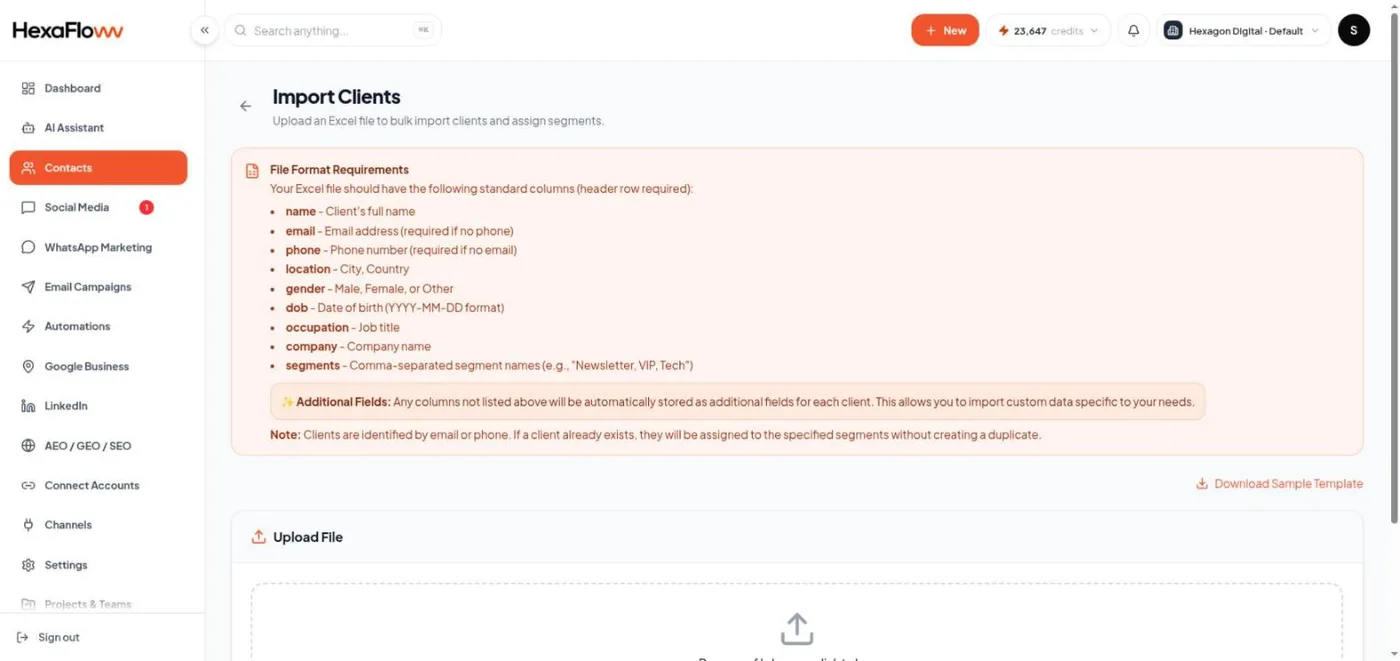
Import page with the drag-and-drop upload zone -
Click Import Clients. The upload starts a background job right away - there's no separate column-mapping step, so it's the header names that matter. A live progress bar shows the count. You can leave the page; the clients list shows an "Importing clients…" banner that links back here.
After import
- The summary shows contacts created and updated, segments created and assigned, and any skipped rows grouped by reason.
- A contact that already exists (matched by email or phone) is updated, not duplicated.
- Check Find & merge duplicates if you imported from more than one source.
Only import contacts who have agreed to hear from you. A bad list hurts email deliverability and WhatsApp quality. See Consent, opt-in & the suppression list.
Common problems
- Rows skipped for no identifier - those rows had neither a valid
emailnor a validphone. Check the header names match. - Everything skipped - the header row doesn't match the expected names, so no
email/phonecolumn was found. - Segment not applied - the
segmentscell must contain segment names, separated by commas.