Design an email template
Build a reusable email with the drag-and-drop editor.
Email templates are the designs your campaigns send. Build them with the drag-and-drop editor at /admin/templates.
Create a template
-
Open Email Campaigns → Templates → New Template. The editor opens on a gallery - pick a ready-made design to adapt, or Start blank.
-
Design in the editor. Drag in blocks - text, image, button, columns, divider, social links. Click any block to edit its content and style.
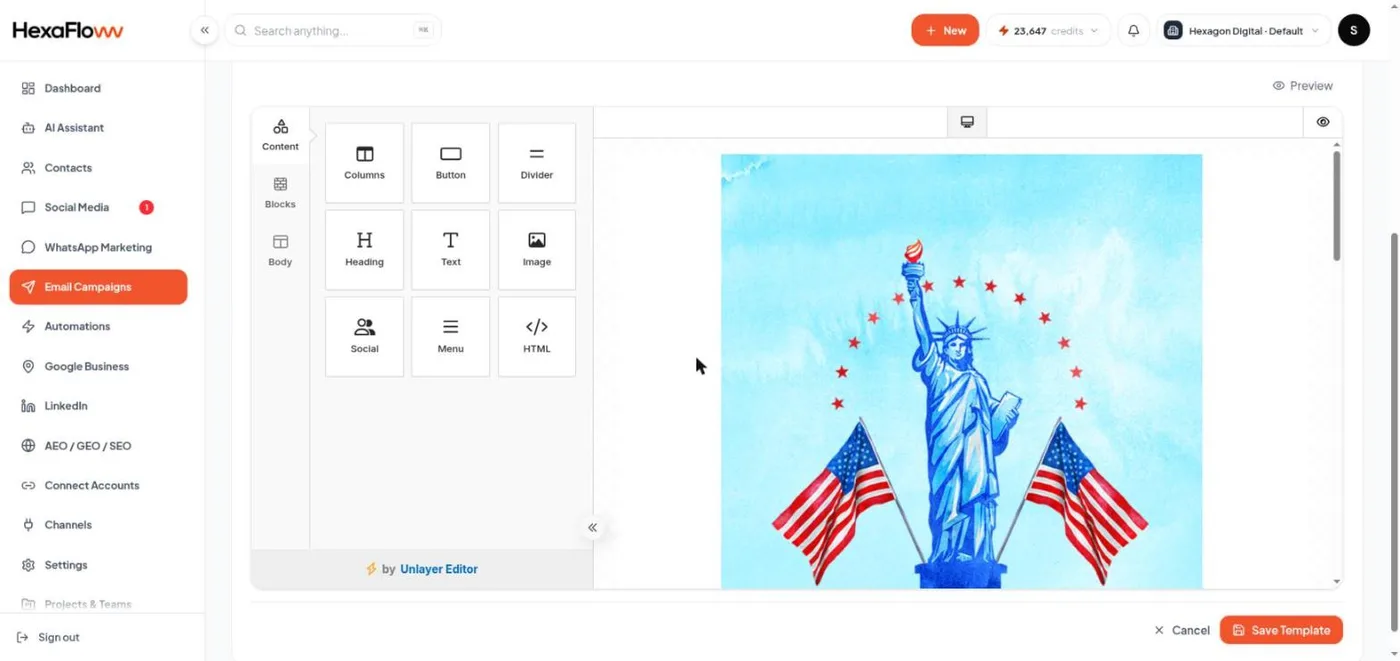
Drag-and-drop email editor -
Add personalization. Insert merge tags like the contact's first name; they're filled in per recipient at send time. Set a fallback for each so a blank value still reads well.
-
Add the unsubscribe link. Every marketing email needs one - see Unsubscribe links & staying compliant.
-
Save. Preview on desktop and mobile before you use it.
Tips
- Keep the width around 600px and use a single-column layout for mobile.
- Compress images before uploading.
- Send yourself a test from the campaign editor to check how it renders in your inbox.
The gallery shown when you create a template includes community designs - start from one and adapt it, rather than building from scratch.