Notifications
The bell menu, the notifications page, and what triggers each alert.
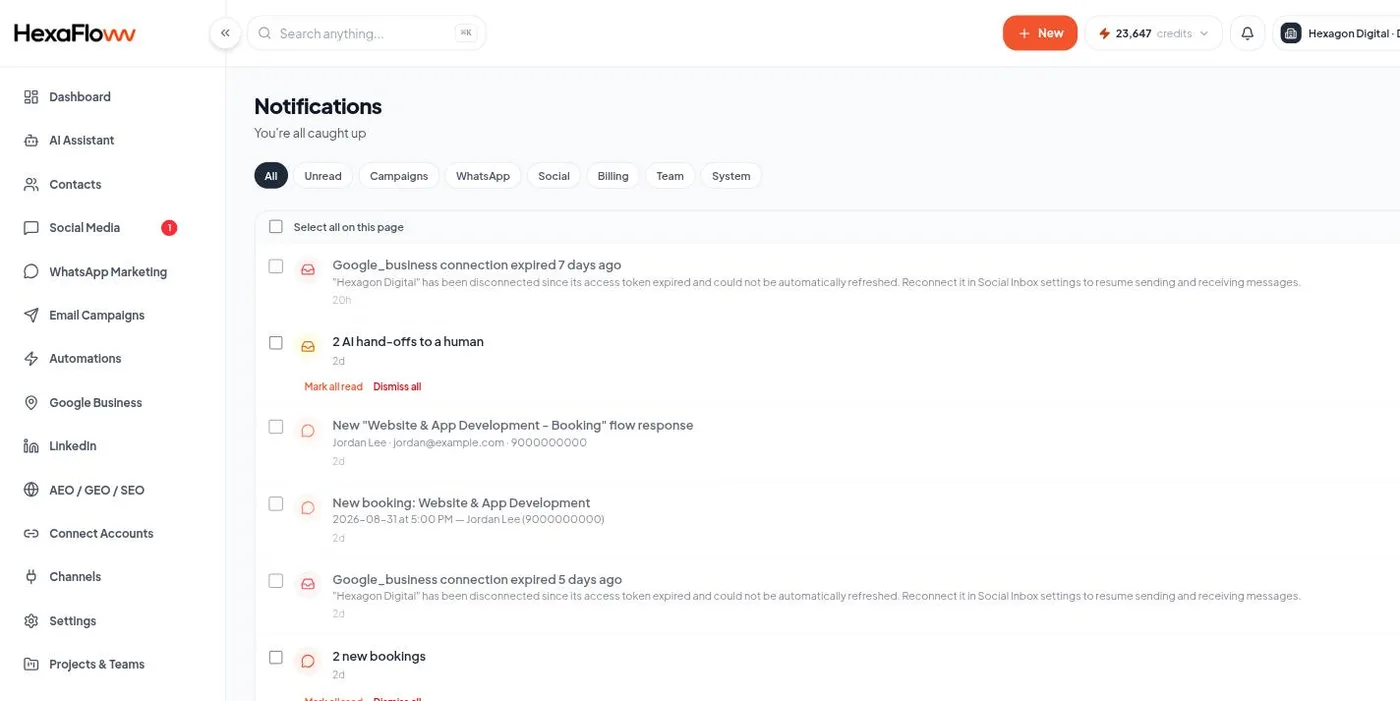
HexaFloww keeps an in-app notification feed for things that need your attention: a campaign finished, a WhatsApp template was rejected, an import failed, a payment issue, and more.
Where to see them
- Bell menu (top bar) - the latest few, with an unread count. "Mark all read" and "View all" are here, plus a sound on/off toggle.
- Notifications page (
/admin/notifications) - the full history, with category filter tabs, multi-select (mark read / unread / delete), and grouping of similar alerts.
How they work
- One notification per event, shared across your team - when anyone reads or dismisses it, it clears for everyone in that project.
- You see notifications for your active organization plus the project you currently have open. Switching projects switches the feed.
- Warning and error notifications also pop a brief toast in the corner when they arrive.
What triggers them
See What each notification means for the full list and what to do about each.
High-volume events (like every new inbound DM) are deliberately not notifications. Those show as a badge on the inbox instead.