Switching workspace (projects)
Move between brands or clients if you have more than one project.
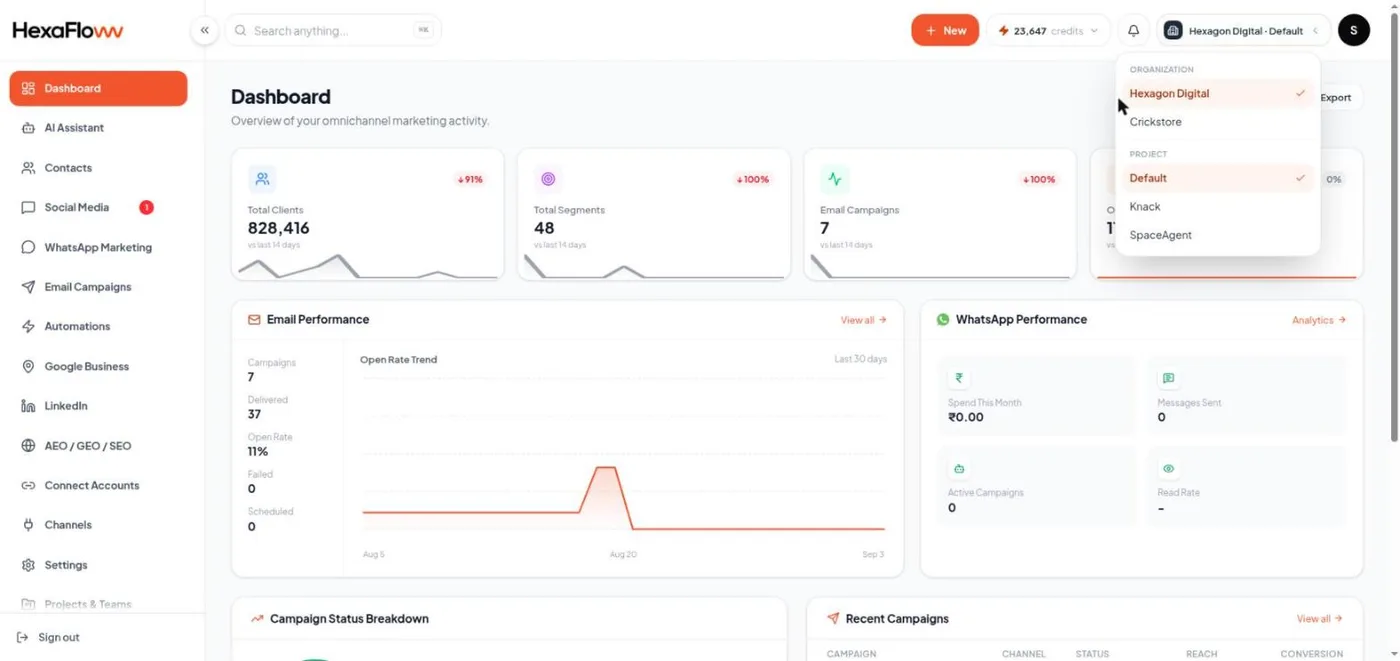
If you work across more than one organization or project, you switch between them from the workspace switcher in the top bar.
Switching
Click the workspace name in the top bar (it shows your organization, and the project name when you have more than one project). Pick a different organization or project from the menu. The whole app reloads into that workspace.
The switcher only shows organizations and projects you have been given access to. If a project is missing, ask an organization admin to add you to it.
What changes when you switch
Everything scoped to a project changes: contacts, segments, templates, campaigns, connected accounts, the inbox, automations, analytics, and notifications. Your login and your role stay the same.
Creating another project
Organization admins can add projects under Settings → Projects (/admin/settings/projects). Your plan sets how many projects you can have. See Managing projects.
Use a separate project when you need a genuinely separate audience and set of connected accounts, for example a second brand, or a client if you're an agency. Don't create one just to organize campaigns; use segments and naming for that.