The Connect Accounts hub
One place to see what's connected and add new channels.
The Connect Accounts hub is the one place to see which channels are linked to your workspace and to add new ones. Every marketing and inbox feature depends on having at least one channel connected here.
Opening the hub
In the left sidebar, open the Connect Accounts group, then choose Connect Accounts (or go to /admin/connect-accounts). You need the Admin or Manager role to see it.
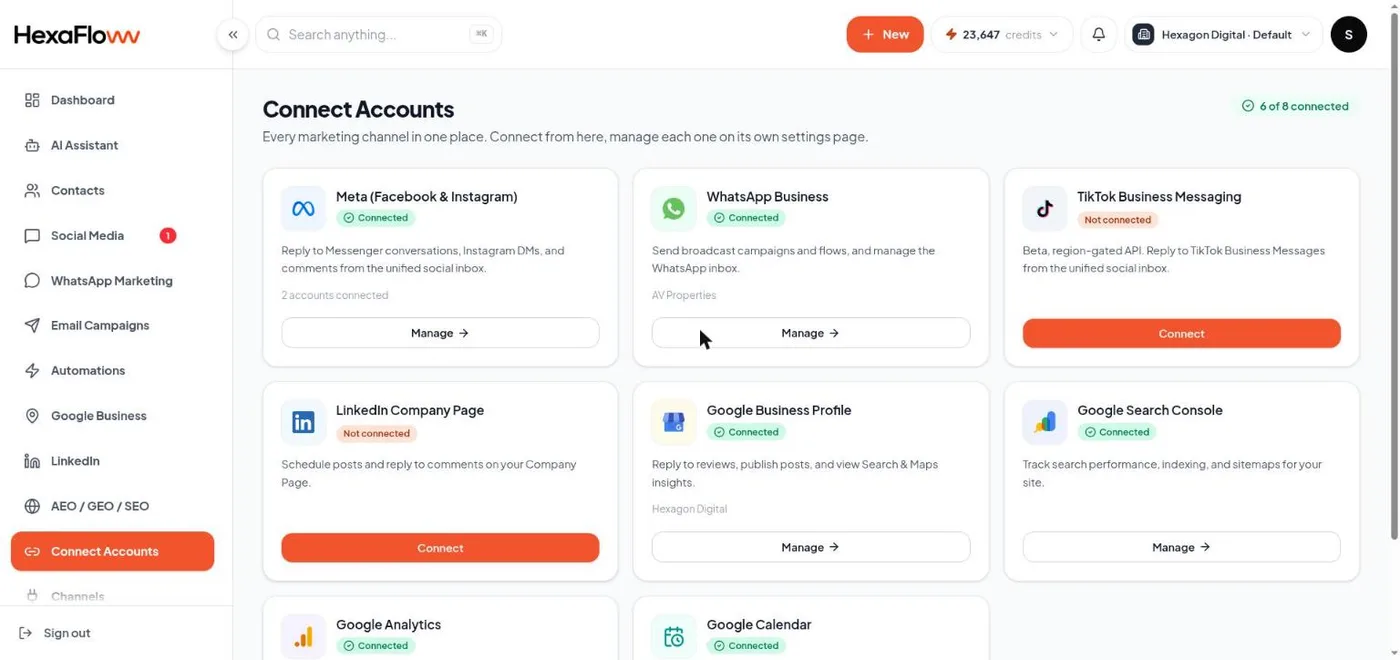
What the hub shows
There is one card per channel:
- Meta - Facebook Page and Instagram business account, shown together on one card.
- WhatsApp - one WhatsApp Business number.
- TikTok, LinkedIn, Google Business Profile.
- Google Search Console and Google Analytics - used by the Website AI reports.
- Google Calendar - used to mirror WhatsApp appointment bookings.
Each card shows whether the channel is connected, and a Connect or Manage button that opens that channel's own page.
Locked cards If a channel isn't included in your plan, its card shows as Locked with an upgrade link instead of a Connect button. See Your plan, billing & AI credits.
Connect and manage happen on the same page
Each channel's page handles both connecting the account and managing it afterwards: the list of connected accounts, token status, Refresh Connection, and Disconnect all live there. You never have to leave the page you connected on to fix or remove something.
Pick a channel to connect