Connect Facebook & Instagram
Link your Facebook Page and Instagram business account so you can reply to messages and comments and schedule posts.
Connecting Meta links your Facebook Page and Instagram business account to HexaFloww so you can reply to messages and comments from the Social Inbox, run automatic replies, and schedule posts - all from one place.
Before you start
- You need the Admin or Manager role in your workspace.
- You must be an admin of the Facebook Page you want to connect.
- For Instagram, the account must be a Professional account (Business or Creator) that is linked to that Facebook Page. A personal Instagram account cannot be connected.
- Your plan must include the social features. If it doesn't, you'll see an upgrade prompt instead of the connect button - see Your plan, billing & AI credits.
Connect your Facebook Page
Facebook and Instagram are connected together through one Meta login, so you only sign in once.
-
Open the Meta connect page. In the left sidebar, open Connect Accounts, then choose Facebook & Instagram. You can also go straight to
/admin/connect-accounts/meta.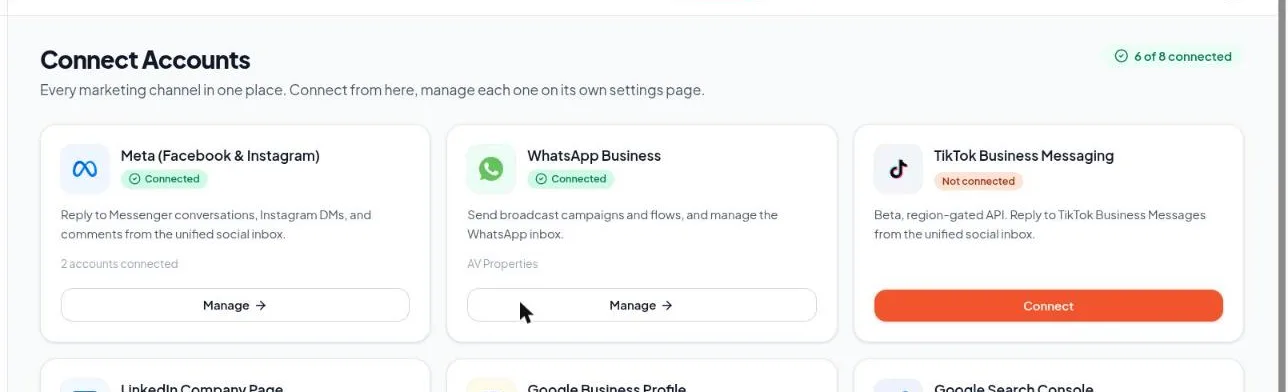
Connect Accounts hub with the Facebook & Instagram card -
Start the connection. On the Connections tab, click Start OAuth Flow (labelled Connect with Facebook the first time). A Meta window opens.
-
Log in and choose your business. Sign in with the Facebook account that manages your Page. If you belong to more than one Business, pick the one that owns the Page and Instagram account you want.
-
Grant the permissions Meta asks for. Leave every requested permission enabled. HexaFloww needs them to read and send messages, read and reply to comments, and publish posts. If you switch any permission off, the connection will be incomplete and some features won't work.

Meta permissions screen with all toggles enabled -
Select the Page (and Instagram account). Tick the Facebook Page you want to connect. If an Instagram account is linked to that Page, Meta shows it here too - tick it as well. Finish the Meta flow to return to HexaFloww.
-
Confirm each account on the Connections tab. Back on the Connections tab you'll see a row for your Page. Click Connect Facebook on that row, and Connect Instagram if an Instagram account is shown. Each badge changes to Connected when it's done.
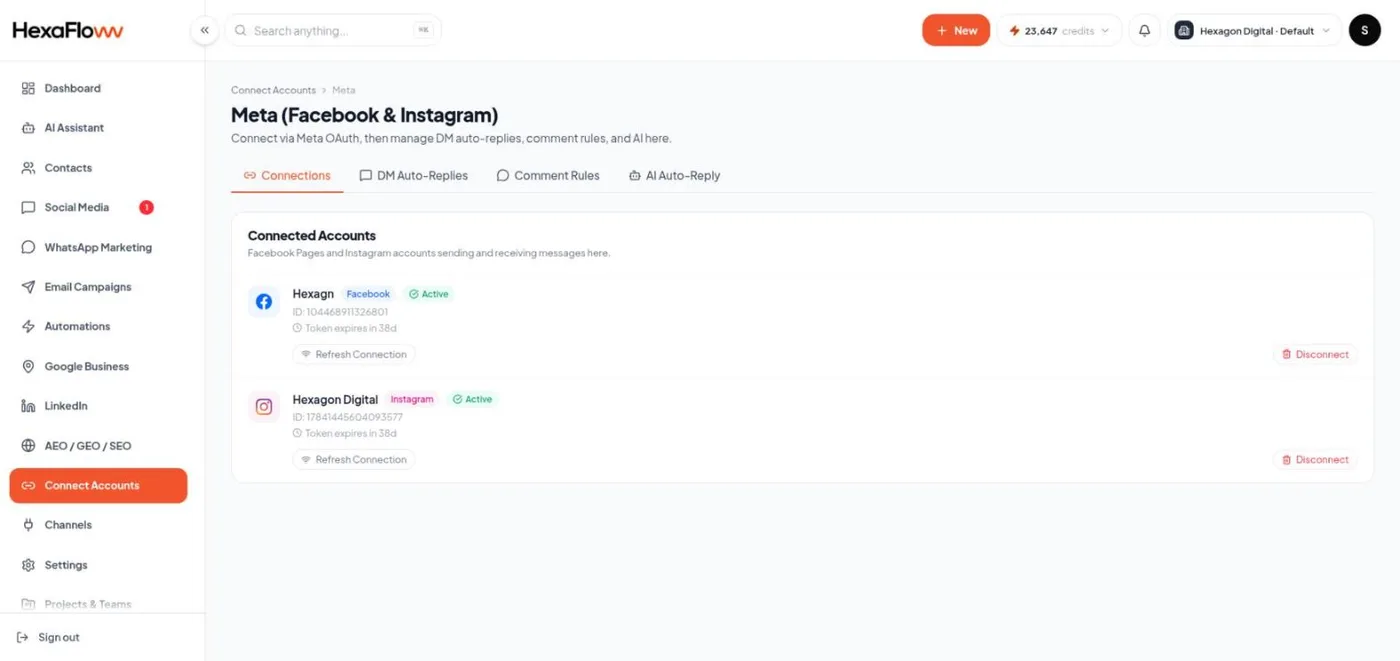
Connections tab showing Facebook and Instagram marked Connected
The picker stays open after each click on purpose, so you can connect the Page and the Instagram account one after another without the screen jumping away.
Connecting Instagram specifically
Instagram is always connected through its linked Facebook Page - there is no separate "Connect Instagram" login. If your Instagram account isn't showing up:
- Open the Instagram app → Settings → Account type and tools and make sure it's set to Professional (Business or Creator).
- In your Facebook Page settings, open Linked accounts and confirm the Instagram account is linked to this Page.
- Disconnect and reconnect Meta so the picker refreshes (see below).
One Page and one Instagram account per project
Each project can have one active Facebook Page and one active Instagram account at a time. Once both are connected, the "Connect another page" option disappears. To connect a different Page or Instagram account, disconnect the current one first, or use a separate project - see Switching workspace.
If the account is already connected to another project
A Facebook Page or Instagram account can only be active in one project at a time. If it's connected somewhere else, HexaFloww shows a conflict message and asks you to confirm the move with a one-time code sent to your email. Confirming disconnects it from the other project and connects it here - past conversations in the other project are kept.
Keeping the connection healthy
Meta access tokens expire periodically. HexaFloww refreshes them automatically in the background, and emails you if a connection needs attention.
Reconnecting
On the Connections tab, use Refresh Connection on the account's row. If that doesn't clear the warning, use Disconnect then connect again from scratch - your conversations, leads, and comments are preserved and re-link automatically.
Common problems
- Instagram account not listed in the picker - it's not a Professional account, or it's not linked to the Page you selected. Fix the link in Facebook Page settings and reconnect.
- "Connect" button is greyed out with an "already connected" note - a different Page or Instagram account is already active in this project. Disconnect it first.
- Messages or comments aren't coming in - a permission was declined during the Meta flow. Disconnect, reconnect, and leave every permission enabled.
- "Cookie length will exceed browser maximum" - refresh the page and start the connection again; the selection is stored safely on our side once you re-run it.